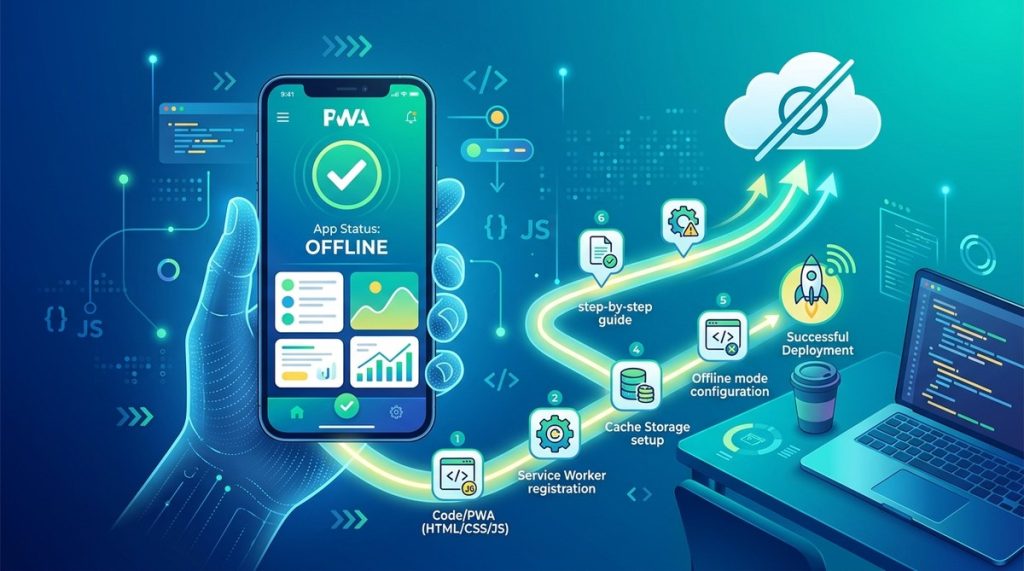
Imagine a user in a bustling Mumbai local train, the signal drops for a few minutes. They open your app, and it works. They can browse products, fill a cart, even submit a form. No frustration. No lost session. This is the power of a Progressive Web App (PWA) that handles offline mode gracefully. For a country like India, where mobile data is cheap but network coverage can be patchy, building a PWA that works offline is not a luxury. It is a necessity. This guide will walk you through the exact steps to build a progressive web app offline, from setting up a manifest file to writing a service worker that caches intelligently.
To build a progressive web app offline, you need three core components: a web app manifest, a service worker, and a caching strategy. This guide provides a complete, hands-on tutorial to implement each step. You will learn how to register a service worker, cache critical pages, handle network failures, and test offline functionality using Chrome tools. By the end, your PWA will offer a reliable experience even without an internet connection.
Why Offline Matters for Indian Users
India has over 700 million smartphone users. Many rely on mobile data for everything from shopping to banking. But network issues are common. Trains, rural areas, and even crowded urban centres can experience drops. If your app crashes when the internet does, you lose trust.
A PWA that works offline solves this. It stores key pages, images, and data on the user’s device. When the network returns, it syncs. This approach is already used by platforms like Flipkart and MakeMyTrip. They know that a seamless offline experience keeps users engaged.
By building a PWA offline, you also reduce server load and improve page speed. For a startup or a growing business, this is a smart move. It aligns with the best practices for optimizing web applications for Indian mobile users in 2026.
The Core Components of an Offline PWA
Before writing code, you need to understand the three pillars of an offline PWA.
- Web App Manifest: A JSON file that tells the browser how your app behaves when installed on a home screen. It defines the name, icons, theme colour, and display mode.
- Service Worker: A script that runs in the background, intercepting network requests. It can cache responses, serve offline pages, and sync data later.
- Caching Strategy: A plan for what to store offline. You might cache product pages, static assets, or API responses. A good strategy balances freshness with availability.
These components work together. The manifest ensures the app feels native. The service worker handles the offline logic. The caching strategy decides what the user sees when disconnected.
Step 1: Set Up Your Web App Manifest
The manifest is your starting point. Create a file named manifest.json in your project root.
{
  "name": "Your App Name",
  "short_name": "App",
  "description": "A PWA that works offline",
  "start_url": "/",
  "display": "standalone",
  "background_color": "#ffffff",
  "theme_color": "#007bff",
  "icons": [
    {
      "src": "/icons/icon-192x192.png",
      "sizes": "192x192",
      "type": "image/png"
    },
    {
      "src": "/icons/icon-512x512.png",
      "sizes": "512x512",
      "type": "image/png"
    }
  ]
}
Link it in the <head> of your HTML.
This tells the browser your app can be installed. On Android, it enables the “Add to Home Screen” option. On iOS, it supports full-screen mode.
Step 2: Register the Service Worker
The service worker is the heart of offline functionality. Create a file called sw.js in your root directory. Then register it from your main HTML file.
This code checks if the browser supports service workers. If yes, it registers sw.js after the page loads. This prevents the service worker from slowing down the initial load.
Step 3: Write the Service Worker Logic
Inside sw.js, you will handle three key events: install, activate, and fetch. The fetch event is where caching happens.
const CACHE_NAME = 'my-app-v1';
const OFFLINE_URL = '/offline.html';

// Install event: pre-cache critical pages
self.addEventListener('install', (event) => {
  event.waitUntil(
    caches.open(CACHE_NAME).then((cache) => {
      return cache.addAll([
        '/',
        '/css/style.css',
        '/js/app.js',
        '/images/logo.png'
      ]);
    })
  );
  self.skipWaiting();
});

// Activate event: clean old caches
self.addEventListener('activate', (event) => {
  event.waitUntil(
    caches.keys().then((keyList) => {
      return Promise.all(keyList.map((key) => {
        if (key !== CACHE_NAME) {
          return caches.delete(key);
        }
      }));
    })
  );
});

// Fetch event: serve from cache or fallback
self.addEventListener('fetch', (event) => {
  if (event.request.method !== 'GET') return;

  event.respondWith(
    caches.match(event.request).then((response) => {
      if (response) {
        return response;
      }

      // If not in cache, fetch from network
      return fetch(event.request).then((networkResponse) => {
        if (networkResponse.status === 200) {
          const clonedResponse = networkResponse.clone();
          caches.open(CACHE_NAME).then((cache) => {
            cache.put(event.request, clonedResponse);
          });
        }
        return networkResponse;
      }).catch(() => {
        // Network failed, serve offline page
        return caches.match(OFFLINE_URL);
      });
    })
  );
});
This service worker does three things.
- Pre-caches the homepage and key assets during installation.
- Serves cached content when the network is available or not.
- Falls back to an offline page if the request is not cached and the network fails.
Step 4: Create an Offline Fallback Page
When the user is offline and requests a page not in the cache, you need a friendly offline page. Create offline.html in your root.
<!DOCTYPE html>
<html lang="en">
<head>


</head>
<body>
  <h1>No Internet Connection</h1>
  <p>It looks like you are offline. Your saved pages are still available. Please check your network and try again.</p>
  <a href="/">Go to Homepage</a>
</body>
</html>
This page should be lightweight and cacheable. It gives the user a clear path back to the app.
Step 5: Test Offline Behaviour
Testing is critical. Use Chrome’s developer tools to simulate offline conditions.
- Open your PWA in Chrome.
- Press
Ctrl+Shift+Ito open DevTools. - Click the “Network” tab.
- Find the dropdown that says “No throttling” and select “Offline”.
- Reload the page. Your service worker should serve the cached homepage or the offline page.
You can also use the “Application” tab to inspect the service worker status. Look for “Running” under the “Service Workers” section.
Common Mistakes and How to Avoid Them
Even experienced developers make errors when building a PWA offline. Here is a table of common pitfalls and their fixes.
| Mistake | Why It Happens | How to Fix It |
|---|---|---|
| Service worker not registered | Missing or incorrect script tag in HTML | Verify the path to sw.js and check browser console for errors. |
| Cache not updating | No cache invalidation logic | Use versioned cache names and clean old caches in the activate event. |
| Offline page not served | Fetch event does not catch network errors | Add a .catch() block in the fetch event to return the offline page. |
| Assets not pre-cached | Install event is empty or incorrect | Use cache.addAll() with correct file paths. |
| User sees stale content | Cache-first strategy without revalidation | Use stale-while-revalidate pattern for dynamic content. |
Advanced Strategies for Production
Once the basics work, you can improve your PWA with these techniques.
- Background Sync: Use the
Background SyncAPI to queue user actions (like form submissions) and send them when online. This is useful for apps like ride-hailing or food delivery. - Selective Caching: Do not cache everything. Cache static assets (CSS, JS, images) and critical pages. For dynamic data, use a network-first strategy with a cache fallback.
- Offline Analytics: Track how many users go offline and which pages they request. This helps you refine your caching strategy.
- UPI Payments Offline: For Indian apps, handle payment failures gracefully. Show a “Payment Pending” status and sync when online. Learn how to integrate UPI payments into your web app with Node.js for a seamless experience.
Your Offline PWA Checklist
Before you deploy, run through this checklist.
- Manifest file is valid and linked.
- Service worker is registered and running.
- Critical pages and assets are pre-cached.
- Offline fallback page is created.
- Cache invalidation logic is in place.
- Tested with Chrome’s offline mode.
- Tested on a real mobile device with airplane mode.
The Real World Impact
Consider an e-commerce site in India. A user in a rural area with patchy 2G connectivity opens the app. The service worker serves the cached product catalogue. The user adds items to the cart. The cart data is stored locally. When the network returns, the cart syncs. The user completes the purchase.
This is not a hypothetical scenario. It is how apps like Nykaa and Swiggy retain users in low-connectivity zones. By building a PWA that works offline, you are not just coding a feature. You are building trust.
Putting It All Into Practice
You now have the complete blueprint to build a progressive web app offline. Start with a simple service worker and a manifest. Test aggressively. Then layer on advanced features like background sync and selective caching. Your users in India will thank you for it. The next time they are on a delayed train or in a weak signal area, your app will still be there. That is the kind of reliability that turns visitors into loyal customers.